 LapBeepsLapBeeps
Raspberry Pi appliance
The same application, running headless on a Raspberry Pi at the track. No screen, nothing to set up on race morning, and a browser on any phone at the track is the operator console.
echo 'deb [trusted=yes arch=arm64] https://repo.lapbeeps.com/apt/ /' | sudo tee /etc/apt/sources.list.d/lapbeeps.list
sudo apt update
sudo apt install lapbeeps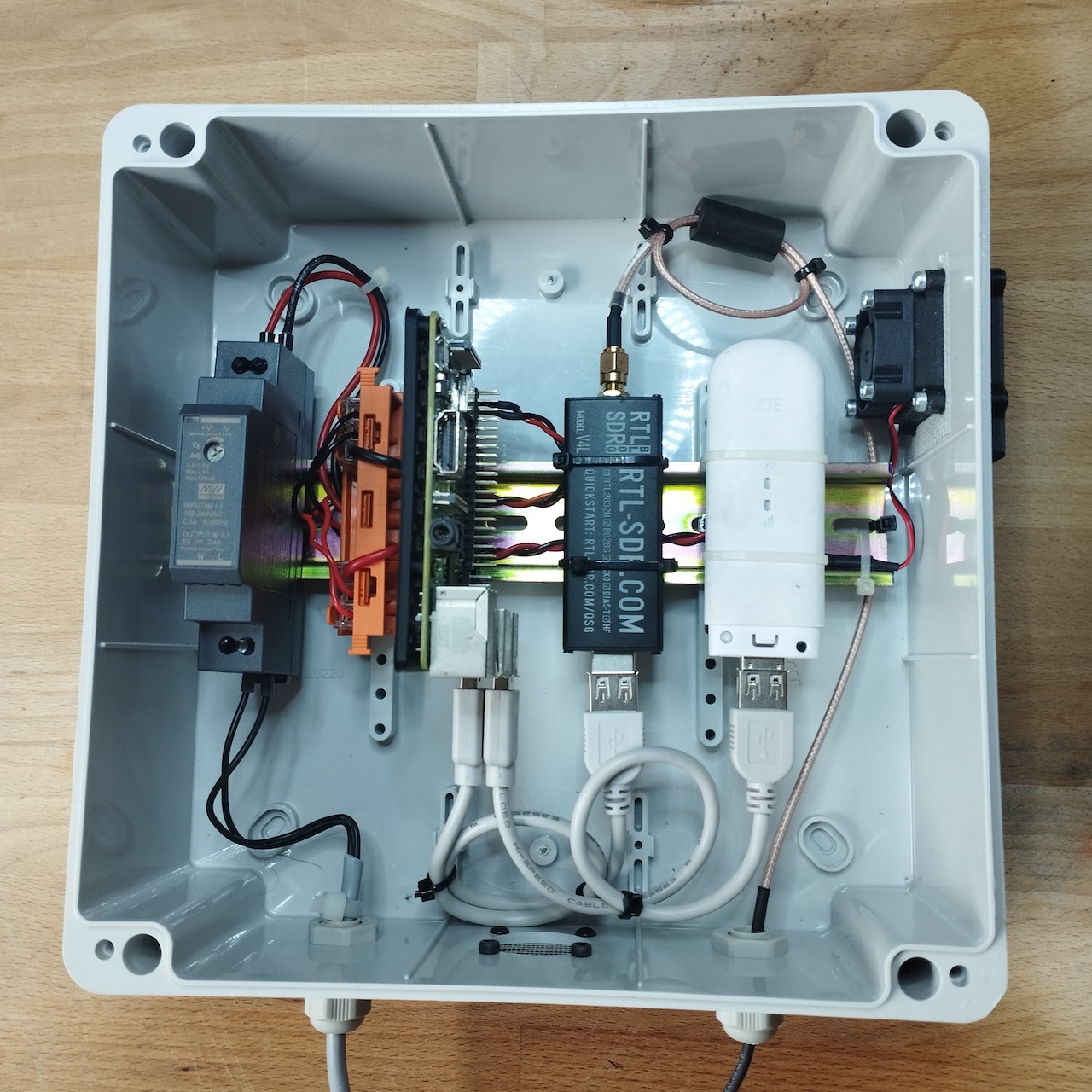
What it is
The appliance is the desktop application with the window taken off. The decoder handling, the scoring, the race director and the renderer are the same code — it serves its screens to browsers over the track's network instead of drawing them on a monitor nobody is standing in front of.
What you need
Around $100 of hardware, most of which a club running OpenStint already owns. Nothing here is specific to LapBeeps except the Pi being 64-bit.
Running 64-bit Raspberry Pi OS. The package is arm64 only — a 32-bit install will refuse it, so take the 64-bit image in the Imager.
OpenStint on the same Pi with an RTL-SDR dongle is the cheapest route, and installs from the same repository. Network decoders — MyLaps, RCHourGlass, LapMonitor — work too.
Any powered speaker in the Pi's audio jack, or a USB sound card. Optional, but it is what turns the box into a commentator.
Wi-Fi or Ethernet for the browsers that drive it. Internet access is needed only for online streaming and for upgrades — timing itself runs offline.
Leaving it outdoors permanently? The always-on build guide covers the rest of the hardware: the weatherproof enclosure, the DIN-rail power supply, ventilation and the 3D-printed parts.
Install
Five steps, all of them over SSH or in a browser. Nothing is ever plugged into the Pi except power, the decoder and a speaker.
In Raspberry Pi Imager, pick Raspberry Pi OS Lite (64-bit) — the build with no desktop environment, since nothing will be attached to the Pi. Open the gear icon before writing and set the hostname, enable SSH, and fill in Wi-Fi and locale. The hostname is the address you will open later, so pick something you will not mind typing.
Boot the Pi, SSH in, and bring the base OS up to date before installing anything.
sudo apt update
sudo apt full-upgradeOne sources line, served over HTTPS from our own domain. The OpenStint decoder comes from the same repository, so if the SDR is on this same Pi, install both in one go.
echo 'deb [trusted=yes arch=arm64] https://repo.lapbeeps.com/apt/ /' | sudo tee /etc/apt/sources.list.d/lapbeeps.list
sudo apt update
sudo apt install lapbeeps

# or, with the OpenStint SDR decoder on the same Pi:
sudo apt install lapbeeps openstintThe service starts on its own and serves the UI on port 8080. From any browser on the same network, open the hostname you set in step 1. Set the track's minimum and maximum lap times first — that is what filters out noise and false triggers — then configure the decoder.
http://<hostname>.local:8080The appliance runs as a systemd service called lapbeeps. These three commands are the whole toolkit: what state it is in, a restart, and a live log.
systemctl status lapbeeps
sudo systemctl restart lapbeeps
journalctl -u lapbeeps -f
Living with it
Everything the application can do, it does here. What changes is how a handful of those things reach you, because the appliance has no save dialog, no file manager and no window of its own — each of them is handed to a browser instead.
Reports open as a tab in the browser you are driving from and print from its own dialog — to a real printer, or to Save as PDF. Desktop can only write the PDF.
Spreadsheets and CSVs are built on the Pi and handed to your browser, so they land in the Downloads folder of whatever you are holding — byte-identical to desktop's.
A meeting can be downloaded whole. Unzip it into your Documents/LapBeeps folder and the desktop app lists and opens it — it is the meeting itself, not a copy.
The first browser to connect holds control and a second is refused, so nobody mid-race is displaced by someone opening the page in the pits. The screens that only watch — scoreboards, report tabs, the overlay — do not count.
Served at /obs with nothing to switch on — a switch on an appliance would only ever be found in the off position at the start of a race. It paints nothing while nothing is running.
Point a smart TV or a projector at /aux and it shows the same scaled-up results display desktop puts on a second monitor. Any number can be open at once, and none of them takes control away from the operator.
Upgrades and data
The current release in the repository is version 2.13.0.
The usual two commands. The service restarts itself onto the new build, and your settings, drivers and meetings are left alone.
sudo apt update
sudo apt upgradeEarlier releases stay in the repository, so a rollback is an install of a pinned version — worth knowing on the morning of a race.
apt list -a lapbeeps
sudo apt install lapbeeps=<version>Settings, the driver database and every race meeting are under /var/lib/lapbeeps on the Pi's own disk — meetings as the same folder-per-meeting files the desktop app writes. Removing the package keeps them; purging it deletes them, race data included.
Port 8080 and the data directory are the only two settings outside the UI. They live in /etc/lapbeeps.conf, which an upgrade never overwrites, and are read at startup — so a change needs a restart.
sudo nano /etc/lapbeeps.conf
sudo systemctl restart lapbeeps